

05 Oct How to Delete Hidden Apps on iPhone Without Screen Time
Have you ever wondered where those seemingly vanished apps went on your iPhone? Or perhaps you’re struggling to remove a stubborn app that refuses to uninstall. Fear not! This guide will walk you through the process of deleting hidden apps on your iPhone, including how to delete hidden apps on iPhone without involving Screen Time, as well as tackling those persistent app removal challenges.
How to Delete Hidden Apps on iPhone: Understanding Hidden Apps and the App Library
Before diving into the deletion process, let’s clarify what hidden apps are and where they might be lurking.
- Hidden apps aren’t truly hidden: They haven’t vanished into thin air. They’re likely tucked away in the App Library, a centralized location for all your apps introduced in iOS 14. If you need to find and manage them, including how to uninstall a hidden app, you can access the App Library by swiping left on your home screen.
- App Library organization: Apps in the App Library are automatically categorized into groups like Suggested, Recently Added, and categories based on app type (Utilities, Productivity, etc.). This might be where you’ll find those elusive apps.
Deleting Hidden Apps: A Step-by-Step Guide
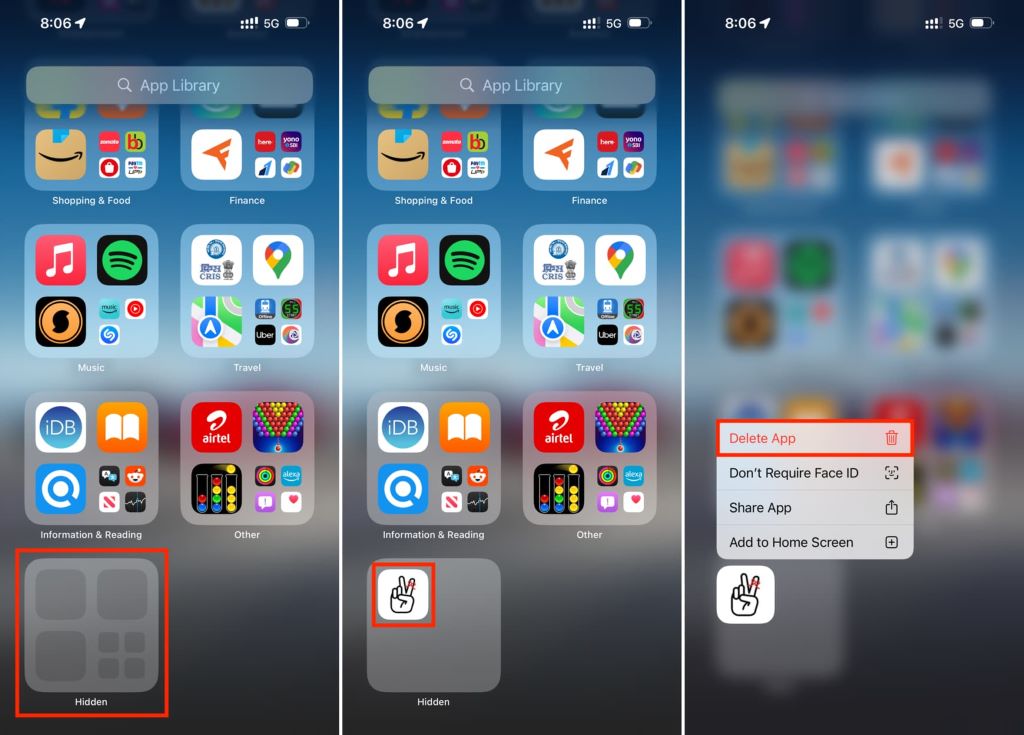
Method 1: Directly from the App Library
- Access the App Library: Swipe left from the rightmost Home screen to reveal the App Library.
- Locate the app: You can either scroll through the categories or use the search bar at the top to find the app you want to delete.
- Delete the app: Press and hold the app’s icon until a menu appears. Tap “Delete App,” then confirm by tapping “Delete” again.
Method 2: Using the Settings App
- Open Settings: Tap the “Settings” app icon on your Home screen.
- Navigate to General: Scroll down and tap “General.”
- Access iPhone Storage: Tap “iPhone Storage.”
- Find the app: Wait for the list of apps to load. You can search for the app or scroll through the list based on storage usage.
- Delete the app: Tap the app you want to delete, then tap “Delete App” and confirm.
Troubleshooting: Dealing with Stubborn Apps
If you’re encountering difficulties deleting an app, here are some potential solutions:
- Check for updates: Ensure the app is up-to-date. Sometimes, updates resolve issues that prevent deletion.
- Force quit the app: Double-click the Home button (or swipe up from the bottom of the screen on newer iPhones) to access recent apps. Swipe up on the app’s preview to force quit it.
- Restart your iPhone: A simple restart can often resolve temporary glitches.
- Disable Screen Time restrictions (if applicable): If you have Screen Time enabled, certain restrictions might prevent app deletion. Temporarily disabling Screen Time can help.
- Contact app support: If the issue persists, reach out to the app’s developer for assistance.
Beyond Texts and Emojis: AI Chatbots Ushering in a New Era of Messaging
How to Delete Hidden Apps on iPhone: Additional Tips for App Management
- Organize your App Library: Create custom categories to group apps logically for easier access.
- Utilize the Search bar: Quickly find apps by typing their names in the App Library’s search bar.
- Offload apps to save space: If you don’t use an app frequently, consider offloading it to free up storage. You can redownload it later without losing data.
- Delete unused apps regularly: Keep your iPhone clutter-free by periodically reviewing and deleting apps you no longer need.
Related: Types of Shearing Machines: A Comprehensive Guide
By following these steps and tips, you should be able to effectively manage your iPhone’s app collection, delete hidden apps, and overcome any uninstall challenges. Remember, a clean and organized device is a happy device!
No Comments